

Speaker & Microphone Groups
Combine multiple speakers or microphones into a single output or input group.
1.Create a group
Open the main window and go to Speaker Group (or Microphone Group) in the sidebar. Click the + button to create a new group. Give it a name and icon, then select which devices to include.
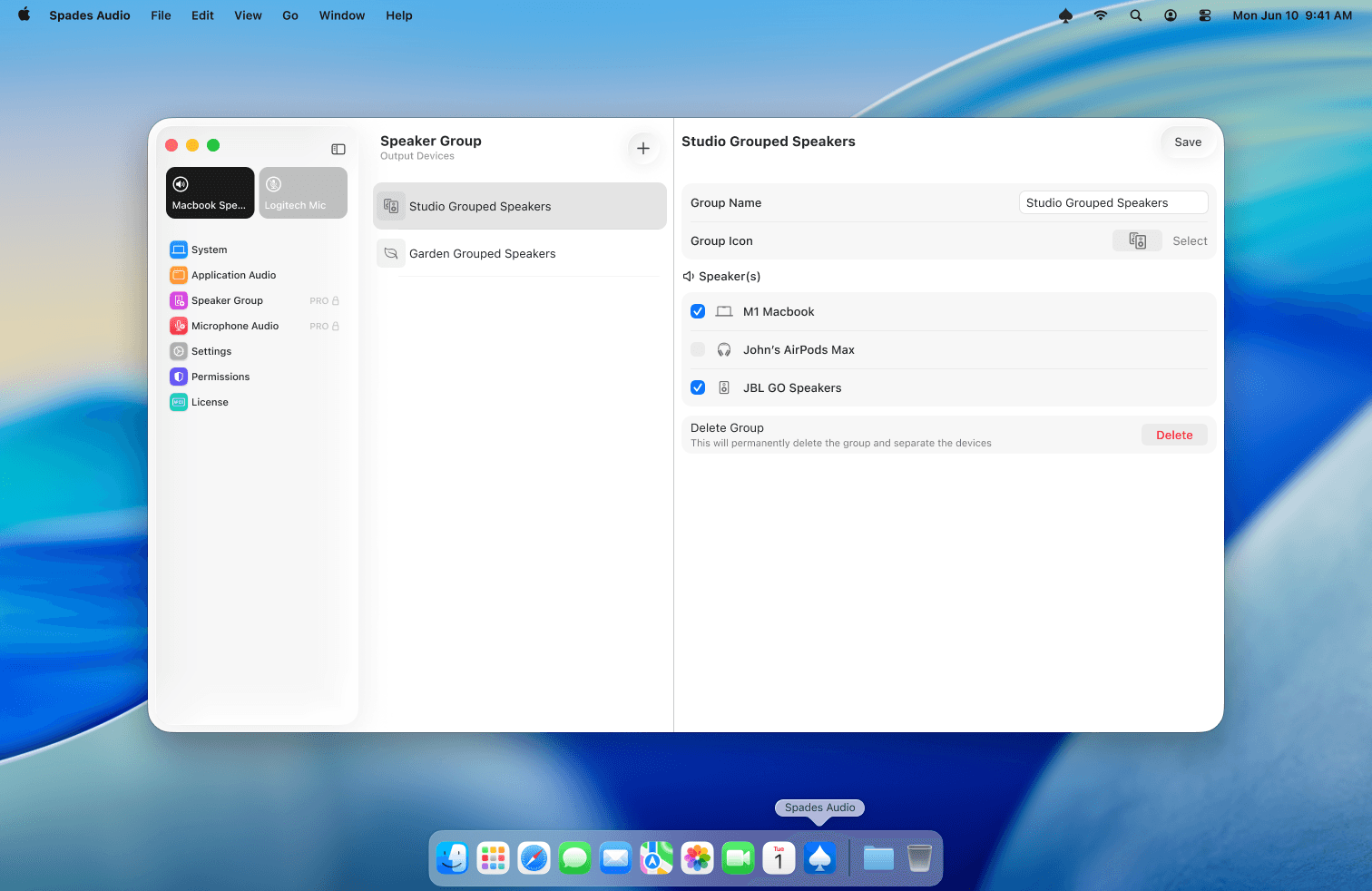
2.Select devices
Check the boxes next to each speaker or microphone you want in the group. For example, create a "Studio" group with your MacBook speakers and external JBL speakers for synchronized playback across both.
3.Use your groups
Groups appear alongside regular devices in the output selector. Switch to a group just like you would any other device — from the menu bar popover or the per-app output dropdown. Microphone groups work the same way for input routing.
Tips
- Speaker grouping is ideal for multi-room setups — play the same audio through your MacBook and a HomePod simultaneously.
- You can edit or delete groups at any time from the sidebar.