

Getting Started
Install Spades Audio and grant the permissions it needs to control your audio.
1.Download and install
Download the Spades Audio installer from spadesaudio.com. Open the DMG, run the installer, then launch the app from your Applications folder or Launchpad.
2.Grant permissions
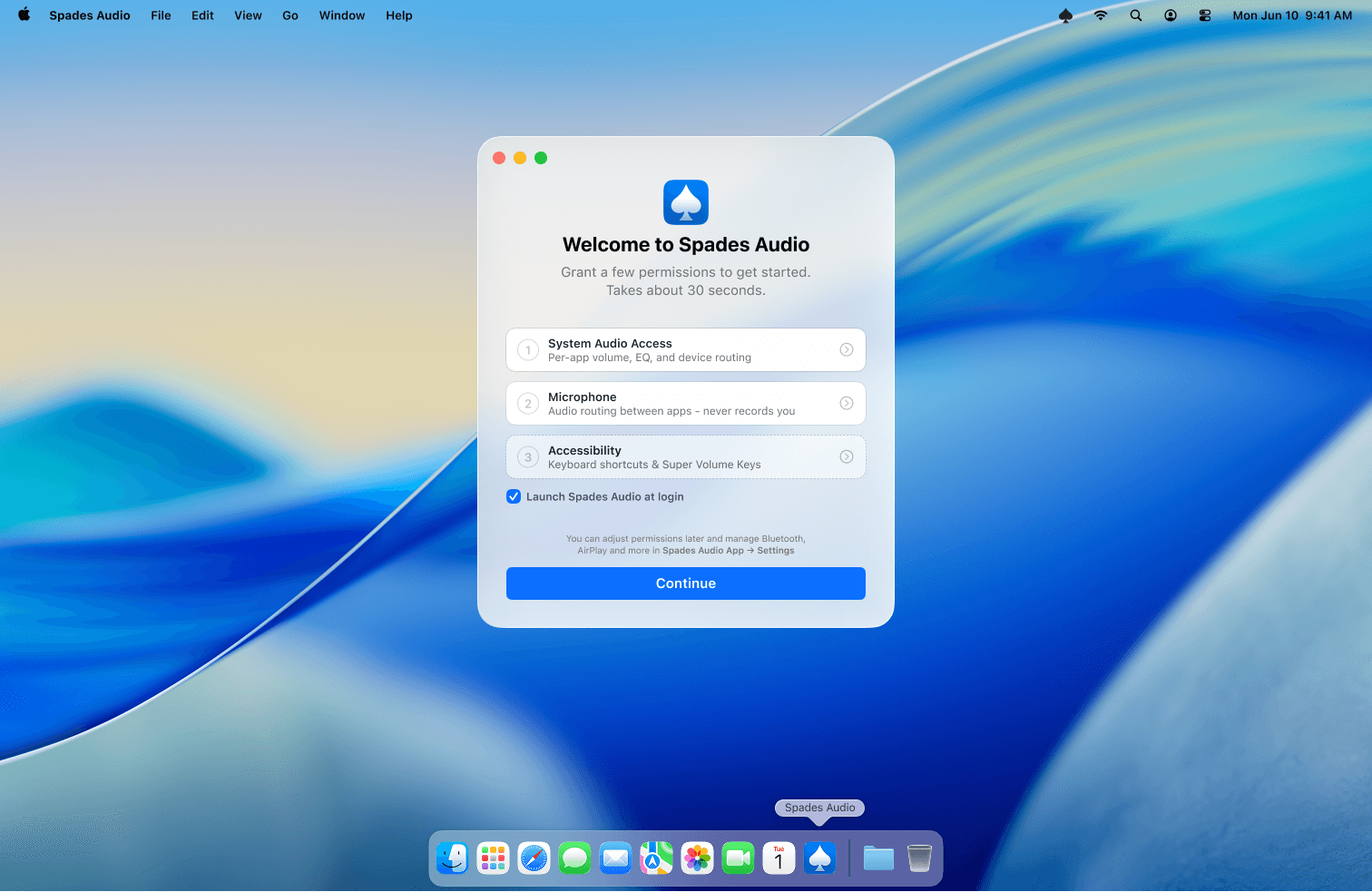
On first launch, Spades Audio asks for Screen & System Audio Recording (so it can see and control per-app audio) and optionally Accessibility (for media key play/pause control). Follow the on-screen prompts — it takes about 30 seconds.
3.Manage permissions later
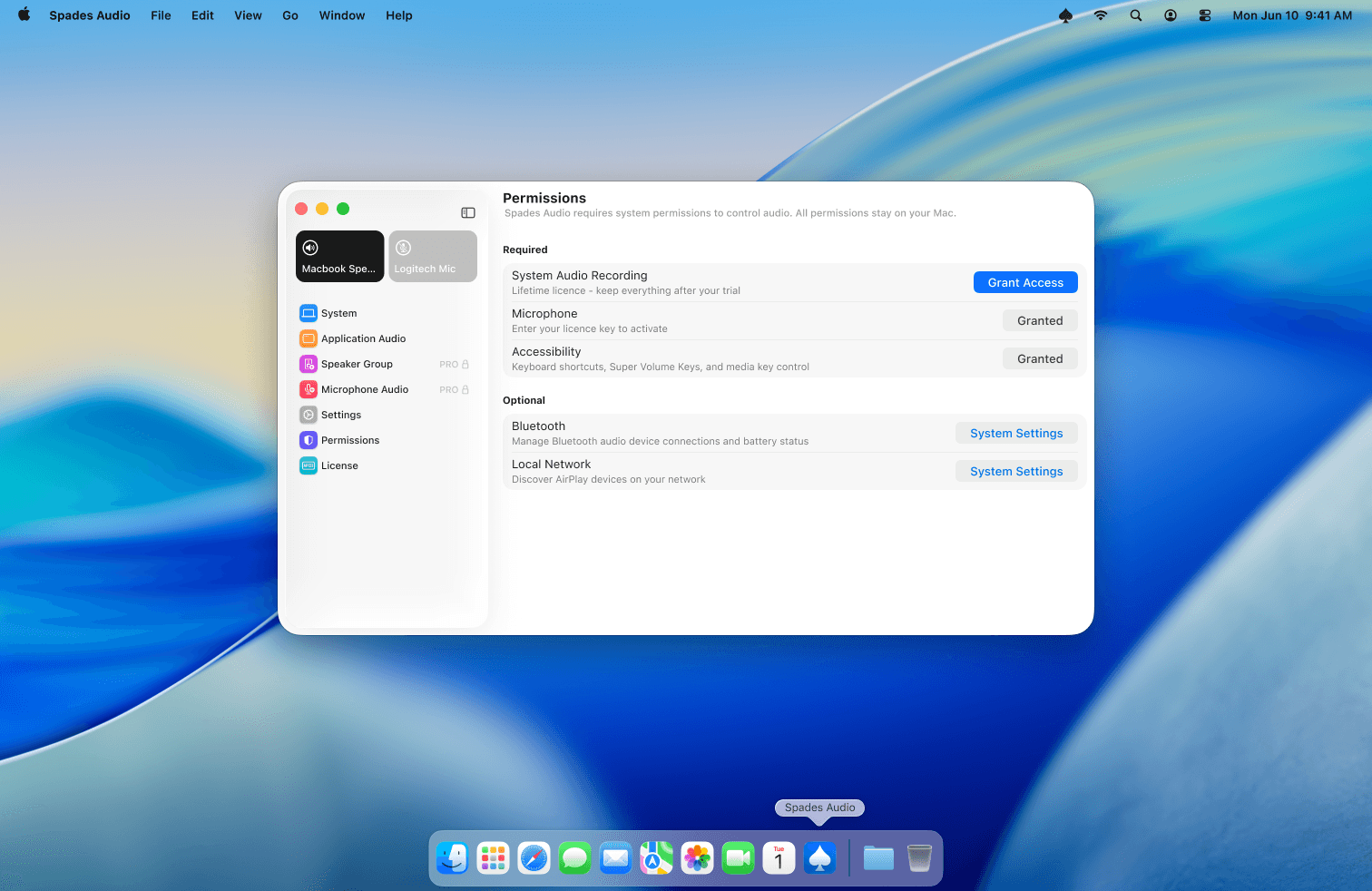
You can review or re-grant permissions at any time from the Permissions screen inside the app. Each permission shows its current status and a button to fix it if needed.
4.Fix permission errors
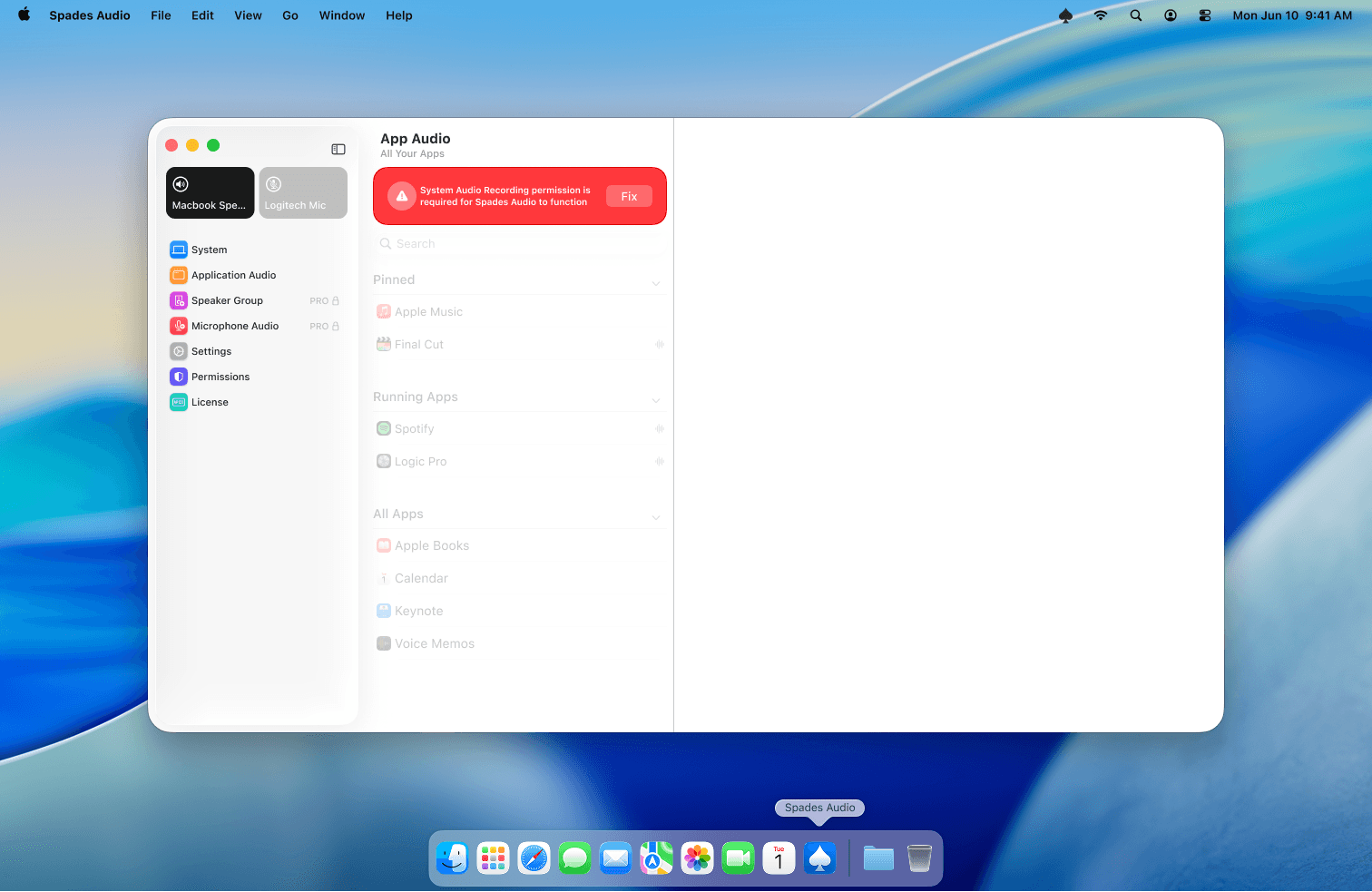
If a permission is missing, Spades Audio shows a red banner at the top of the window. Click the Fix button to be taken directly to the right place in System Settings. After granting access, return to Spades Audio — the banner should disappear.
Tips
- If permissions fail to save, open System Settings → Privacy & Security and toggle Spades Audio off then on again.
- After a macOS update, you may need to re-grant System Audio Recording. Spades Audio will prompt you automatically.