

Menu Bar Controls
Control volume for every app directly from your menu bar.
1.Open the popover
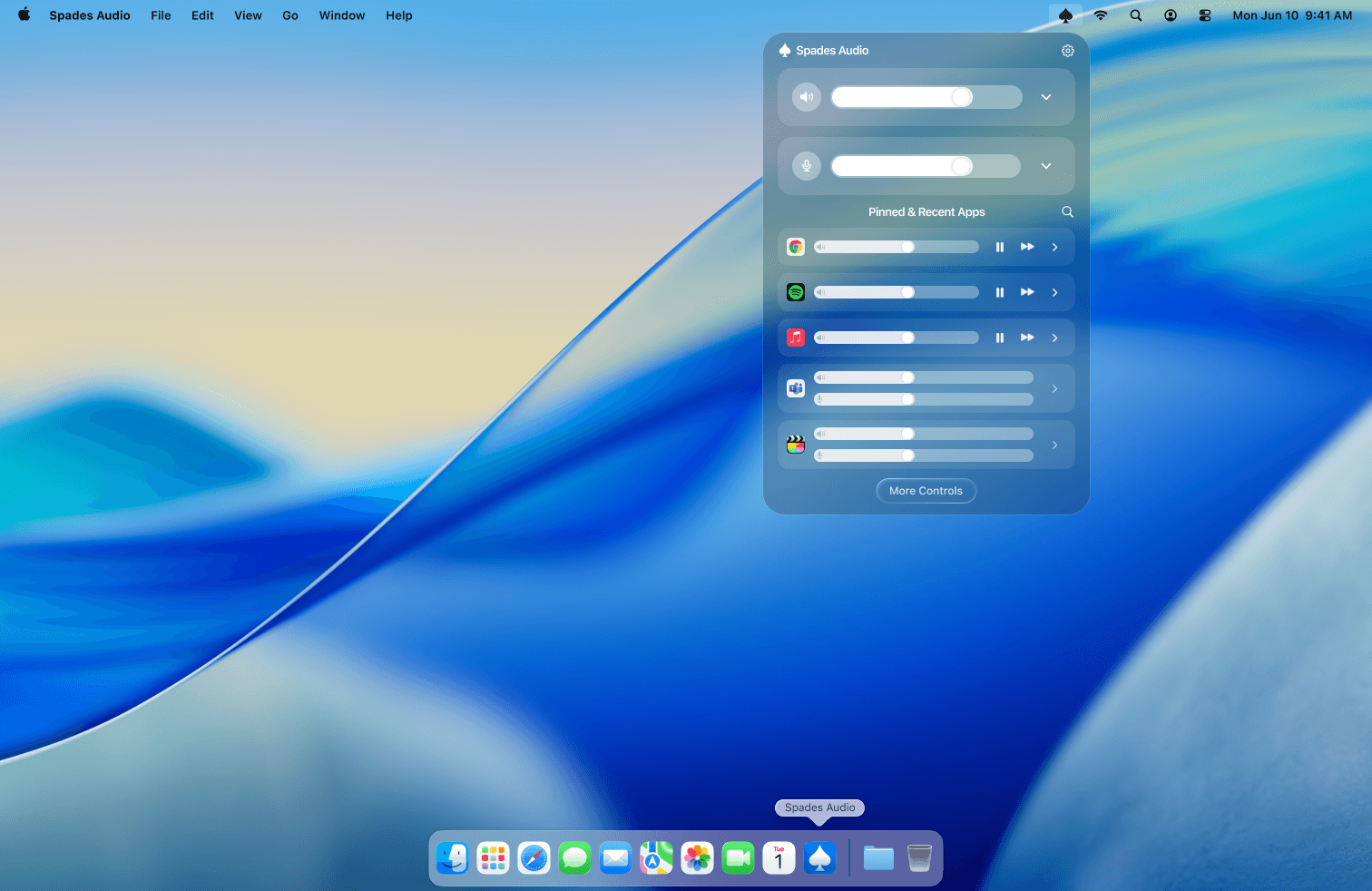
Click the Spades icon in your menu bar to open the control panel. You'll see the master speaker and microphone sliders at the top, with your pinned and recently active apps listed below.
2.Switch output devices
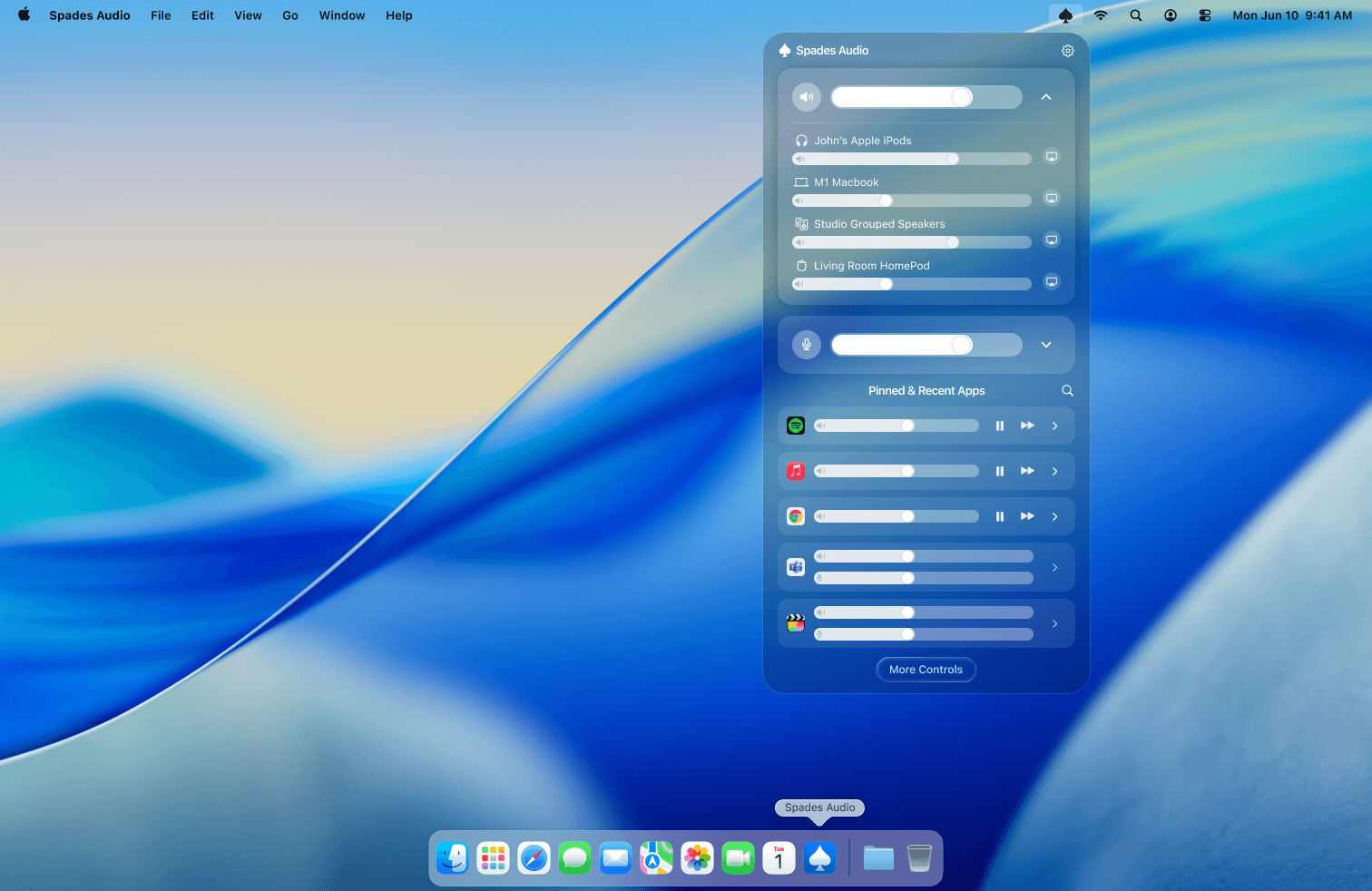
Tap the chevron next to the speaker slider to expand the device list. You'll see all connected speakers, headphones, and AirPlay devices with individual volume sliders. Select one to switch your Mac's output instantly.
3.Adjust per-app volume
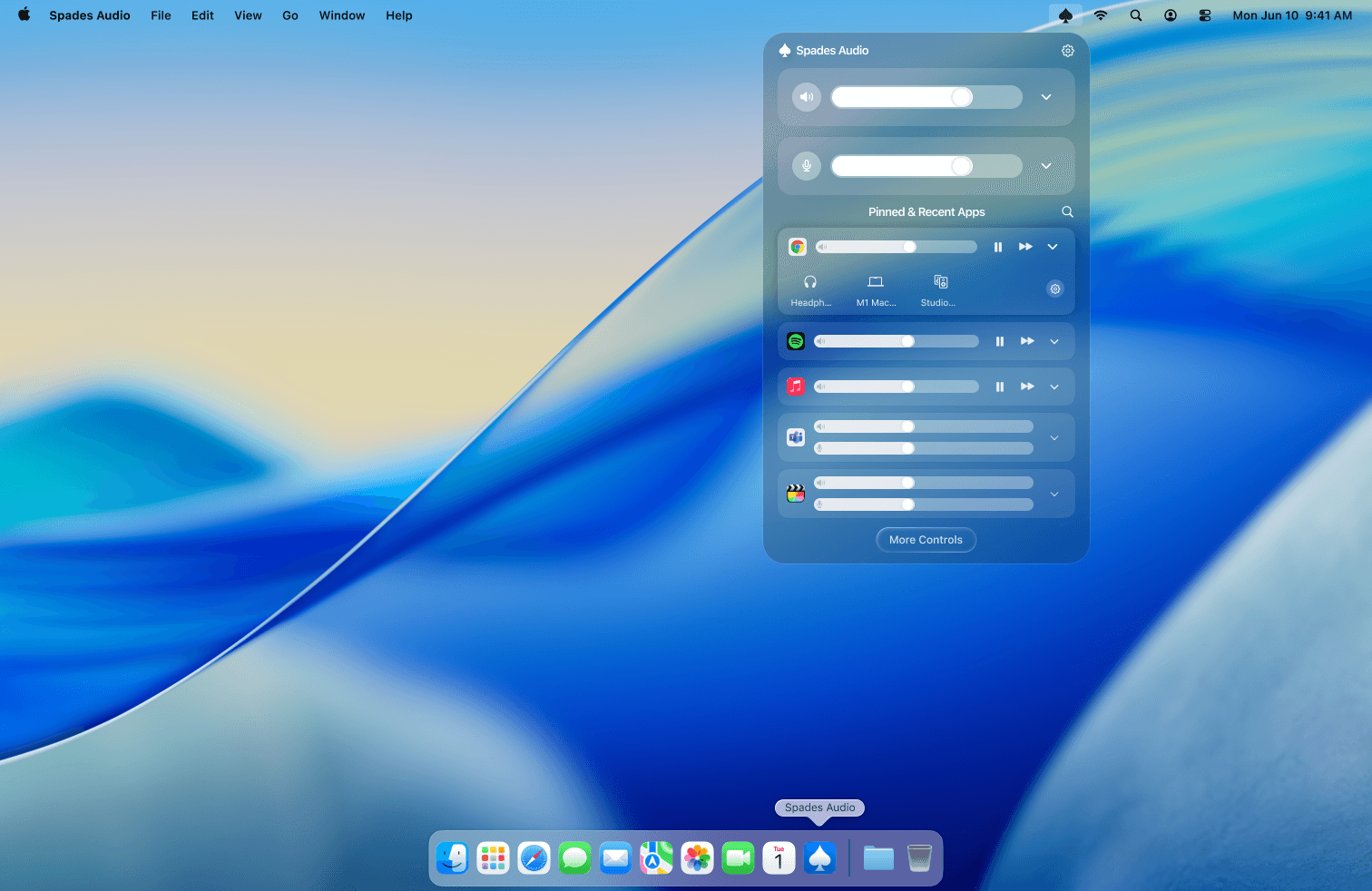
Each app in the list has its own volume slider. Drag to adjust, or use the playback controls to pause and resume audio. Changes take effect immediately — no need to open the app itself.
Tips
- Apps appear in the list once they start playing audio. If an app is missing, make sure it's running and has produced sound at least once.
- Click "More Controls" at the bottom to open the full Spades Audio window.