

System Audio Devices
Manage all connected speakers and microphones from one place.
1.View all devices
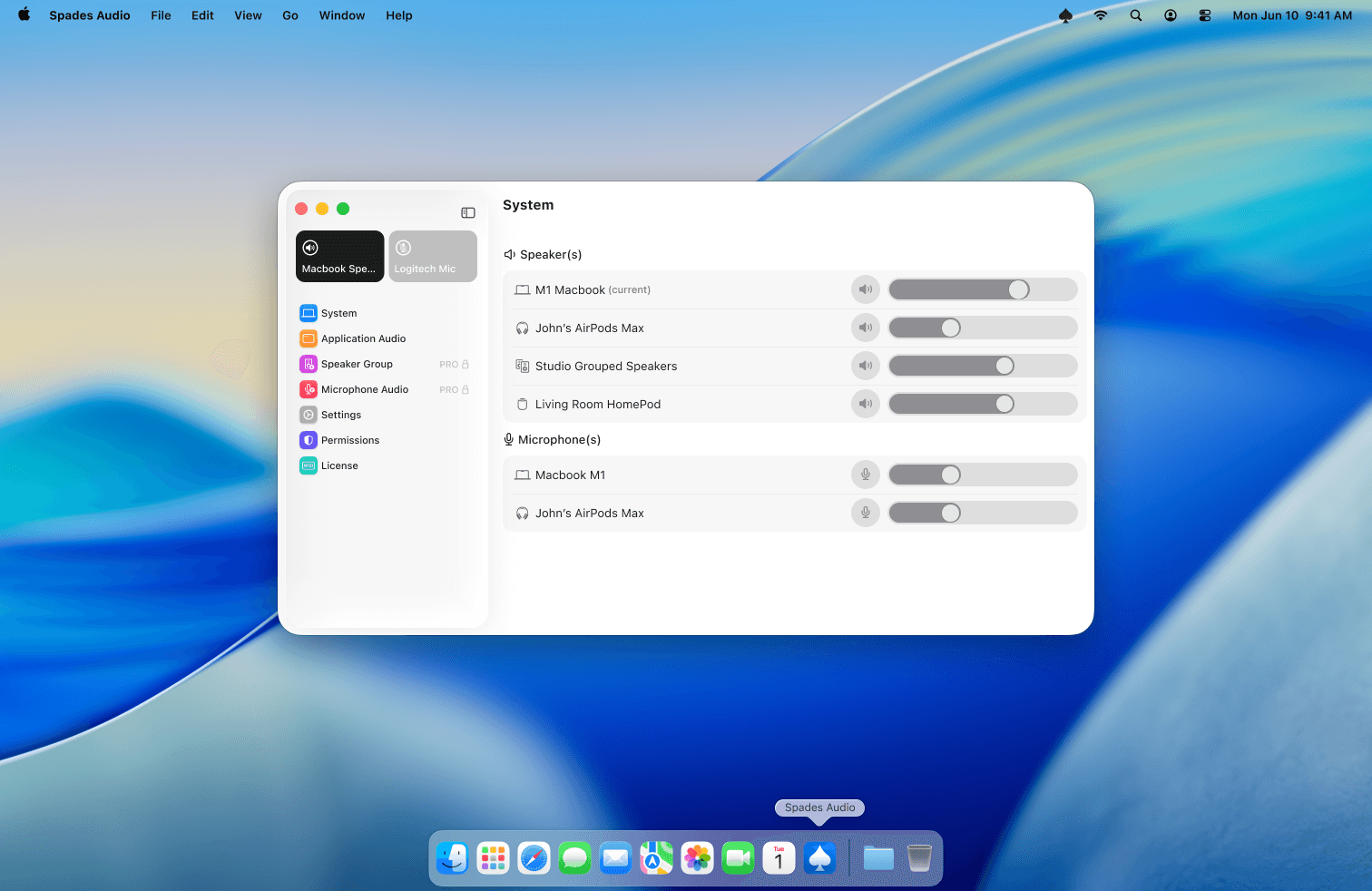
Open the main window and select System from the sidebar. You'll see every connected speaker and microphone listed with individual volume sliders.
2.Switch active output
Click any speaker to make it the active output device. The current device is highlighted. This changes your Mac's system-wide output instantly.
3.Bluetooth and AirPlay devices
Connected Bluetooth headphones, AirPods, and AirPlay devices appear automatically in the device list. If a Bluetooth device doesn't appear, make sure it's paired and connected in System Settings → Bluetooth.
Tips
- If a device shows as connected but produces no sound, try selecting a different device and then switching back.
- Some USB audio interfaces require their own driver — check the manufacturer's website if the device isn't recognized.